
How it works
Query parameters are the key-value pairs after the ? in a URL, like example.com/landing?utm_source=google&plan=pro.
Flint preserves all query parameters on your published pages automatically. No configuration needed. Parameters pass through to your analytics tools, forms, and page content.
Setting up UTM tracking
To track campaign performance on your Flint pages:
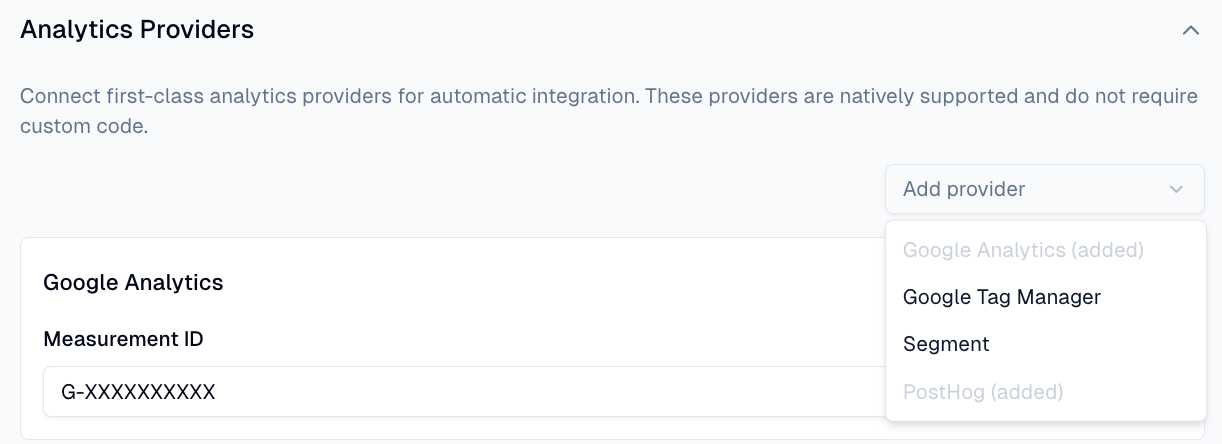
- 1.Make sure Google Analytics or GTM is connected to your Flint site (see Google Analytics & Tag Manager docs)
- 2.Add UTM parameters to your campaign URLs:
- -utm_source: where the traffic comes from (e.g., google, linkedin)
- -utm_medium: the marketing channel (e.g., cpc, email, social)
- -utm_campaign: the campaign name (e.g., summer-launch)
- 3.Share those URLs in your campaigns
- 4.Open GA4 to see traffic broken down by source, medium, and campaign
Flint pages pass UTM parameters straight to your analytics. No extra setup on the Flint side.
Capturing parameters in forms
You can capture query parameters as hidden fields in form submissions. This gives you full attribution data in your CRM.
To set this up:
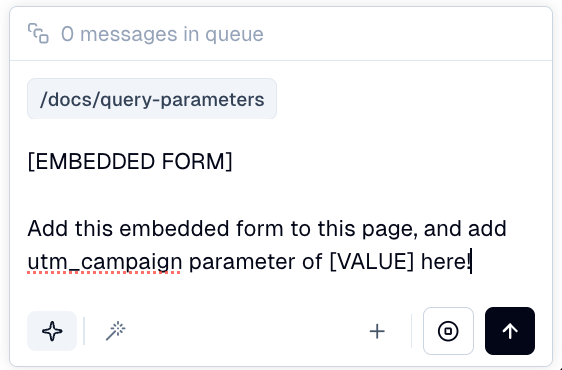
- 1.Add hidden fields to your form for the parameters you want to capture (e.g., utm_source, utm_campaign)
- 2.Map each hidden field to the matching query parameter
- 3.When a visitor submits the form, the parameter values are included automatically
This lets you see exactly which campaign drove each lead, directly in HubSpot, Salesforce, or wherever your forms submit.
Personalizing pages with parameters
Use query parameters to customize what visitors see on your Flint pages. This is especially useful for ABM campaigns.
For example: - example.com/demo?company=Acme: display "Welcome, Acme!" in the headline - example.com/pricing?plan=enterprise: highlight the enterprise tier
To personalize content, reference the parameter value in your page template. Flint reads the URL and renders the right content for each visitor.
Ad platform click IDs
Ad platforms automatically append click IDs to your URLs for conversion tracking:
- •gclid: Google Ads
- •fbclid: Facebook / Meta Ads
- •msclkid: Microsoft Ads
Flint preserves these parameters so your conversion tracking stays accurate. When linking to Flint pages from your ads, make sure your URL redirects don't strip these values.
Verifying your setup
To confirm parameters are working:
- 1.Add test parameters to your published page URL (e.g., ?utm_source=test&utm_campaign=verify)
- 2.Visit the page and submit a form
- 3.Check your CRM or form tool to confirm the parameter values came through
- 4.Open GA4 Real-Time reports to verify the source and campaign are tracked
If data isn't appearing, double-check that your analytics are connected and your hidden form fields are mapped correctly.
