
How It Works
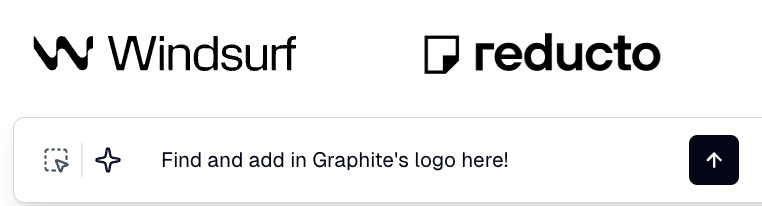
When you ask Flint to add logos for partners, integrations, customers, or competitors, it first searches your asset library for existing logos, then fetches real company logos if none are found. This means you always get the right logo: your uploaded version when available, or an up-to-date official one.
Flint keeps these logos up to date automatically. If a company rebrands, the logo on your page updates without any manual work.
Logo Variants and Formatting
Flint pulls official logos directly from company brand assets. It will choose the best variant for your page background, but you can also request light or dark theme variants when available.
Some formatting options (like converting a colored logo to monochrome) depend on what the company provides. Flint can apply custom CSS on top of the logo for more customization.
Common Use Cases
- •Partner logos: "Add logos for our technology partners: Salesforce, HubSpot, and Marketo"
- •Integration logos: "Show the integrations we support in a logo grid"
- •Customer logos: "Add a 'Trusted by' section with customer logos"
- •Competitor comparisons: "Create a comparison page against Competitor X"
- •Social proof sections: "Add 'As featured in' with publication logos"
Flint has the strongest coverage for well-known companies. If a logo doesn't look right, you can ask Flint for a different type (e.g., icon or symbol) or upload the correct one in chat.
