
Editing Images
Click any image on your page to select it, then use the toolbar to make changes.
Edit Menu Options:
- •Upload: Replace the image with a new file from your computer
- •Assets Library: Browse images already in your Flint workspace, including images imported from your original site and any you've uploaded or generated previously
AI Image Generation
Flint can generate new images using the latest image generation models. There are two ways to do this:
Method 1 - From an Image on Your Page:
1. Click the target image
2. Click Image Gen in the Image Toolbar
3. Flint Agent will generate a replacement asset automatically
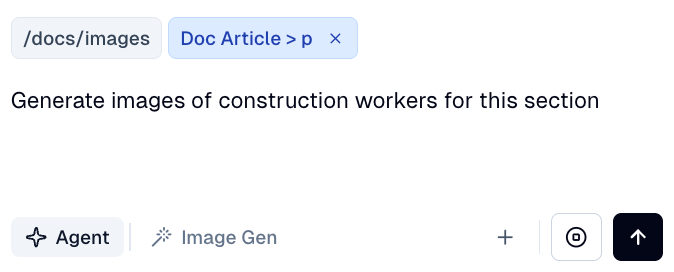
Method 2 - From Flint Chat:
Ask Flint agent directly, e.g., "Generate images of construction workers for this section"
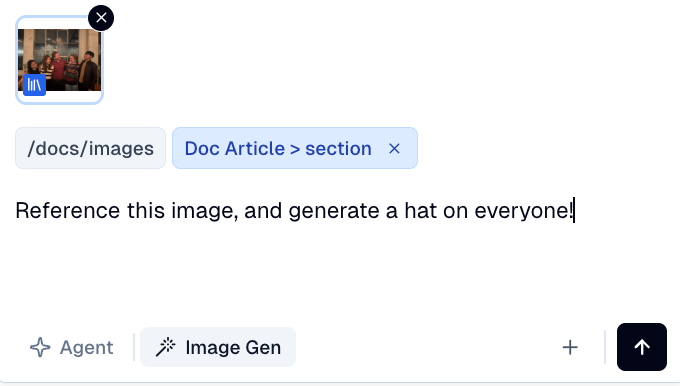
Using Reference Images
A reference image gives Flint Agent visual context when generating new images. This helps maintain consistency in styling.
You can remove attached reference images to avoid noise if generating a completely new asset.
