Get Live in 4 Easy Steps
Launch high-converting ad landing pages with Flint in minutes.
Build landing page in Flint
Start with a home page and strip down exit points so there's a single out link for conversion. Remove distracting navigation and animations to keep visitors focused on your CTA.
Example
radar.co, an office security systems company, uses their main home page as a starting point, then removes the top navigation bar and footer links—leaving only a single "Get a Quote" button as the conversion path.

Check page and site settings
Flint tries to import your defaults, but make sure to verify. Check for page title, description, site icon, and analytics (e.g. Google Tag Manager).
Example
radar.co verifies their page title is "Radar – Smart Office Security Systems", adds a meta description like "Protect your office with AI-powered access control and surveillance", confirms the favicon is their shield logo, and connects their GTM container ID.
Set up subdomain for on-brand ads
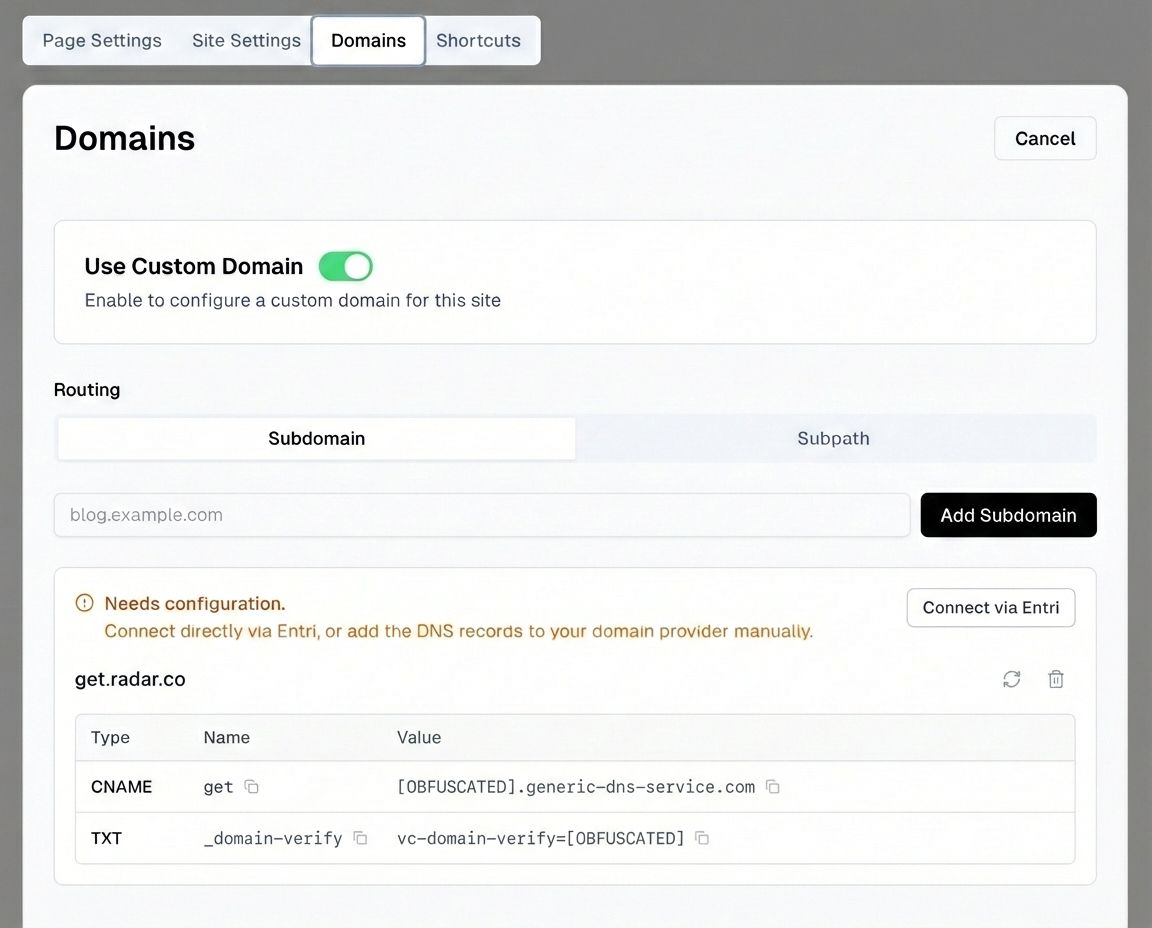
Do this from the settings menu. Your subdomain keeps your ads on-brand with a professional URL that matches your company domain.
Example
radar.co sets up try.radar.co as their subdomain, so ad URLs look like try.radar.co/access-control instead of a generic Flint URL.
Set up those ads!
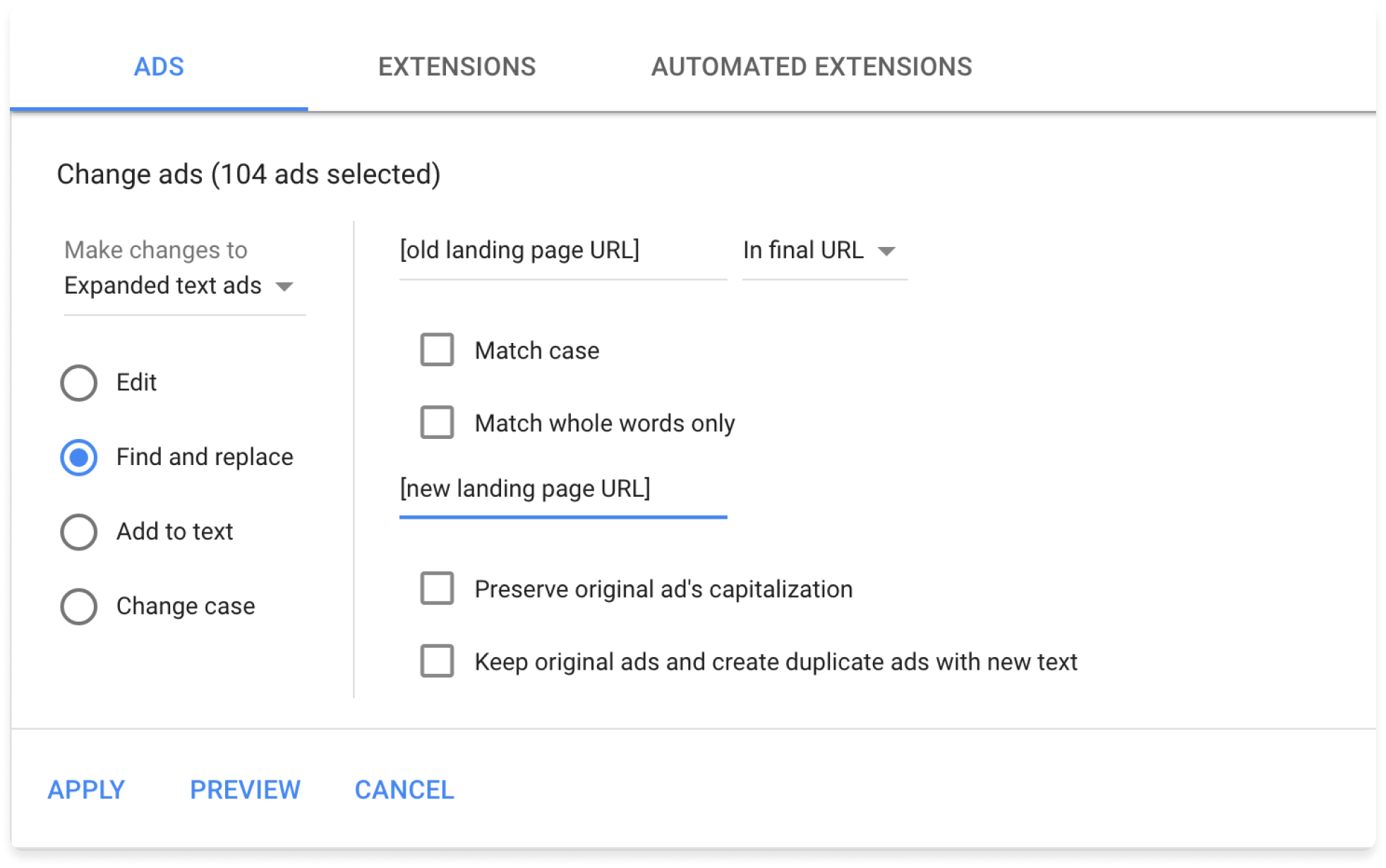
Point your Google Ads console to the new Flint subdomain. Your landing pages are now live and ready to convert traffic.
Example
radar.co creates a Google Ads campaign and sets the final URL to try.radar.co/access-control. They duplicate the page for different ad groups like /video-surveillance and /visitor-management.