
Copying Designs from Other Sites
Flint does not currently offer direct copying of components or designs from other sites without a visual reference. However, you can:
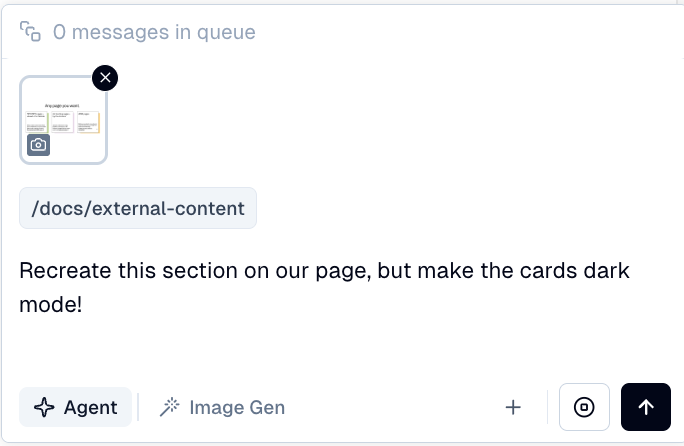
- •Screenshot any elements you want Flint to implement and upload them to the chat (max 3 files per message)
- •Describe the desired layout via Flint chat, giving clear instructions on how elements should be positioned and displayed
Importing Complex Components
Complete import of complex components is not currently available publicly. We are actively working on this feature.
Using External Images
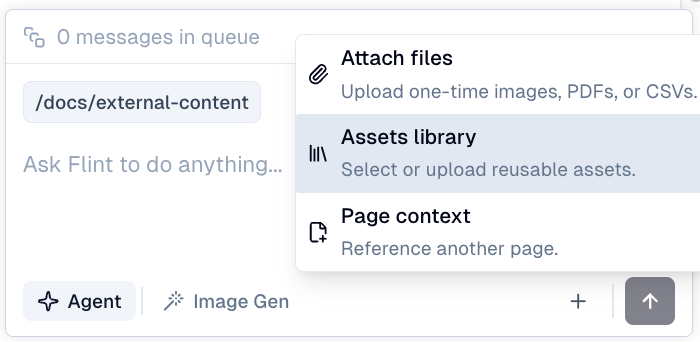
Flint agent currently does not offer automatic importing of external assets. You may upload any desired images:
- •Via the asset manager in chat
- •Via the project menu
Importing from Notion or Google Docs
For now, export your documents as PDF and upload them into Flint agent by clicking "Upload files".
