
Overview
Flint makes it easy to add Google Analytics (GA4) and Google Tag Manager (GTM) to your pages. Once configured, you can track page views, conversions, and user behavior across all your Flint-powered pages.
Your tracking codes are managed in your site settings and automatically injected into every page you publish.
Adding Google Analytics
To add Google Analytics to your Flint site:
- 1.Open your site settings in the Flint dashboard
- 2.Navigate to the "Scripts" or "Analytics" section
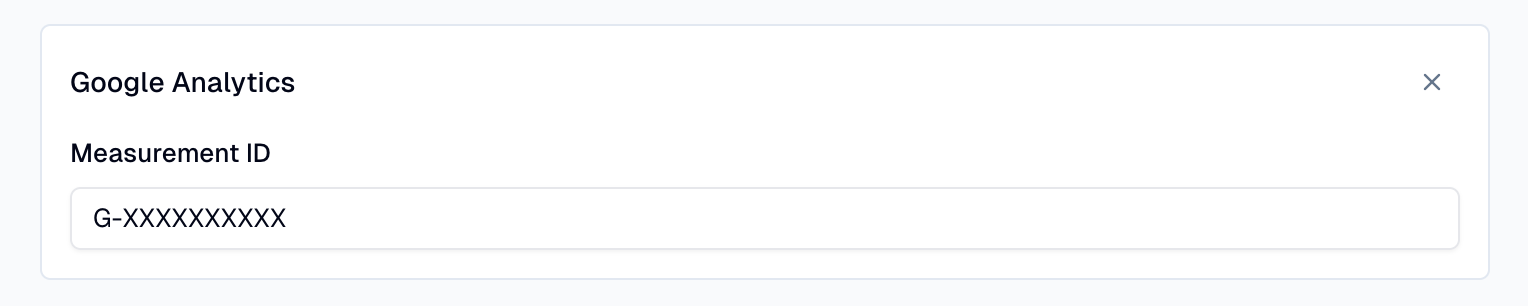
- 3.Paste your GA4 Measurement ID (starts with G-)
- 4.Save your changes
Flint will automatically add the Google Analytics script to all your published pages. You don't need to edit any code.
Adding Google Tag Manager
Google Tag Manager gives you more flexibility to manage multiple tracking scripts and conversion pixels.
To add GTM:
- 1.Open your site settings in the Flint dashboard
- 2.Navigate to the "Scripts" section
- 3.Paste your GTM Container ID (starts with GTM-)
- 4.Save your changes
Flint injects both the head and body GTM snippets automatically, so all your tags will fire correctly.

Tracking Conversions
Once analytics are set up, you can track button clicks and other conversion events.
For basic conversion tracking: - Button clicks can be tracked by adding event parameters in GTM
For advanced conversion tracking, you can add custom scripts that fire on specific user interactions.
Verifying Your Setup
To confirm everything is working:
- 1.Publish a page with your analytics configured
- 2.Visit the published page
- 3.Open Google Analytics Real-Time reports to see your visit
- 4.For GTM, use the Tag Assistant browser extension to verify tags are firing
If you don't see data appearing, double-check that your Measurement ID or Container ID is entered correctly.

